



お知らせ
Having trouble with Babycal?
Find the solution here.
Select the topic that matches your issue, and we’ll guide you through the steps.
- Account Registration
- Credit Card Registration
- Identity Verification (3D Secure)
- If You Cannot Complete Credit Card Registration or 3D Secure Authentication
- Reservation Steps for First-Time Rentals
- Frequently Asked Questions About Reservations
- How to Cancel If Your Plans Change
- Rental Fee Calculation
- Return Place, Extensions, and Late Returns
- Can I Return the Equipment to a Different Location?
- Can I Leave the Equipment with Staff at Other Facilities, Such as Hotels or Stations, and Ask Them to Return It for Me?
- How to Extend Your Rental When You Need More Time (More Than 5 Minutes Before the Scheduled Return Time)
- Can I Extend My Rental After Receiving a Late Return Notice?
- What If I Cannot Return the Equipment Before the Rental Location Closes?
- How to Check Your Scheduled Return Time (Email Notifications)
- Troubleshooting During Your Rental
- What to Check If the Stroller Wheels Won’t Move
- How to Recline the Stroller Seat
- What should I do if I forgot my phone and cannot display my QR code?
- Can the User Be Different from the Person Who Made the Reservation?
- What Should I Do If I Damage the Rented Equipment, Such as a Stroller or Wheelchair?
- What Should I Do If I Accidentally Get the Stroller or Wheelchair Dirty?
- What should I do if I forgot something in the rented item after returning it?
- Unsafe Uses to Avoid for Your Safety
- Can I Rent a Rain Cover?
- Other Inquiries
1. Account Registration
▶What You Need to Do Before Using Babycal for the First Time
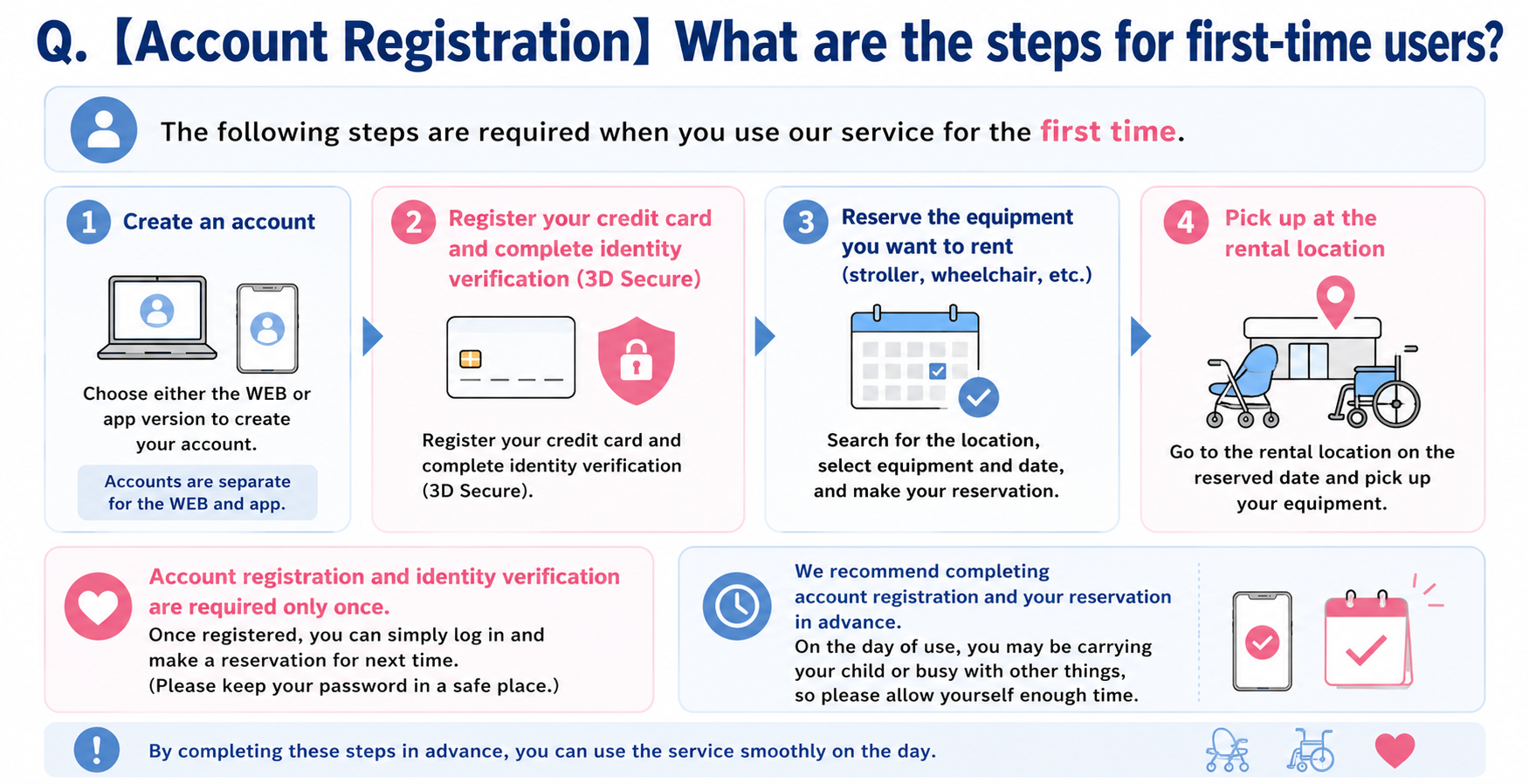
When using the service for the first time, you must complete the following procedures.
【Procedures Required for Your First Use】
▶︎BabyCal Website
①Create an account
(We recommend using the Web version, as it supports multiple languages, including English.
The app version is available only in Japanese.
Please note that accounts created on the Web version and the app version are separate.)
②Register your credit card and complete identity verification (3D Secure)
Account registration and identity verification are required only once.
Once you have completed these steps, you can simply log in and make a reservation the next time you use the service.
(Please make sure you remember your password.)
As you may need to complete the procedures while holding your child on the day of use, we recommend completing your account registration and reservation in advance, allowing yourself plenty of time.
【Procedures Required Each Time You Use the Service】
③ Reserve the equipment you wish to use (stroller, wheelchair, etc.)
④ Pick up the equipment at the rental location
You can pick up the equipment from 15 minutes before the “Start Date and Time” you selected when making your reservation.
※ Pickup is not available before the rental location’s business hours.
Please make sure to check your reservation details in advance, including the exact time when you can pick up the equipment and the exact time by which you must return it.
You can check your reservation details from the “Reservations / In Use” tab on both the Web version.
・Rental Location
・Start Date and Time
・Scheduled Return Date and Time
If your plans change and you want to change the Start Date and Time or Scheduled Return Date and Time, please cancel your current reservation and make a new reservation for your preferred date and time.
→ How to Cancel or Change a Reservation
If you want to extend the Scheduled Return Date and Time,
please complete the extension procedure at least 5 minutes before the scheduled return time.
▶Difference Between the Web Version and the App Version
BabyCal offers two separate services:
・Web Version
・App Version
These are independent systems.
The following information is managed separately for each version:
・Account registration
・Reservations
・Coupons
Please choose whichever version is most convenient for you.
Important
・Accounts created on the Web Version can only be used on the Web Version.
・Accounts created on the App Version can only be used on the App Version.
We recommend using the Web version, as it supports multiple languages, including English.
The app version is available only in Japanese.
▶How to Register (Web Version)
①Click “WEB Member Registration” at the top right of the website.
②Enter your email address and submit it.
③Open the registration email and access the URL within 24 hours.
④Read and agree to the Terms of Use.
⑤Enter the information required to create your account and make payments..
▶How to Register (App Version)
Please note that the app version is available only in Japanese.
The web version supports multiple languages, including English.
① Download the BabyCal app from the App Store or Google Play.
▶︎BabyCal on the App Store
▶︎BabyCal on Google Play
②Tap “WEB Member Registration“ at the bottom left of the map screen.
③Choose one of the following registration methods:
・SMS Verification
・Apple ID
・Google Account
④Enter the information required to create your account and make payments.
⑤After completing registration, proceed to the payment information screen.
▶Cases Where the Registration Email Is Not Received
If you do not receive the registration email, please check the following:
Check your spam or junk mail folder.
The email may have been automatically moved there.
Check your email filtering settings to make sure emails from Babycal are not being blocked.
Check your email and security software settings.
The email may have been automatically moved or deleted.
▶What should I do if I forgot my password?
Select “WEB Login” at the top of the page.
On the login screen, select:
“Forgot your password?”
Follow the instructions to reset your password.
2. Credit Card Registration
▶Credit Card Registration: Step-by-Step Guide
After creating your account, please register your payment card.
For a successful registration:
Use a stable internet connection.
Do not close the browser or app during authentication.
Carefully enter all verification codes.
〈 Registration Steps 〉
① Prepare a valid credit card that can be used for payment.
└Which Credit Cards Cannot Be Used with Babycal?
② Enter your card information.
③ Your card issuer will determine whether identity verification is required.
④ If required, a 3D Secure authentication screen will appear.
└What is 3D Secure?
⑤ Complete authentication by following your card issuer’s instructions
(such as entering a one-time password).
⑥ Once authentication is completed, your card registration is finished.
└ If You Cannot Complete Credit Card Registration or 3D Secure Authentication
▶Which Credit Cards Cannot Be Used with Babycal?
Please prepare a valid credit card.
〈BabyCalTroubleshootingGuide〉
✕ Debit cards linked directly to a bank account
✕ Prepaid cards
✕ Some cards that do not support 3D Secure 2.0, including certain UnionPay cards
✕ Expired cards
✕ Cards that have exceeded their credit limit
After entering your card information, 3D Secure 2.0 authentication will be performed to verify your card.
![[Member Registration] Please tell me about the credit card required for registration.](https://babycal-jre.com/lp/wp-content/uploads/2026/07/ee7450caacd46de0477e7d56f0471a39.png)
▶Tips for Successful Card Registration
Please ensure that:
☑ Your internet connection is stable.
☑ You do not close the browser or app during authentication.
☑ Authentication codes are entered correctly.
☑ Your credit card is valid and available for use.
▶Unsupported Cards
3.Identity Verification (3D Secure)
▶What Is 3D Secure?
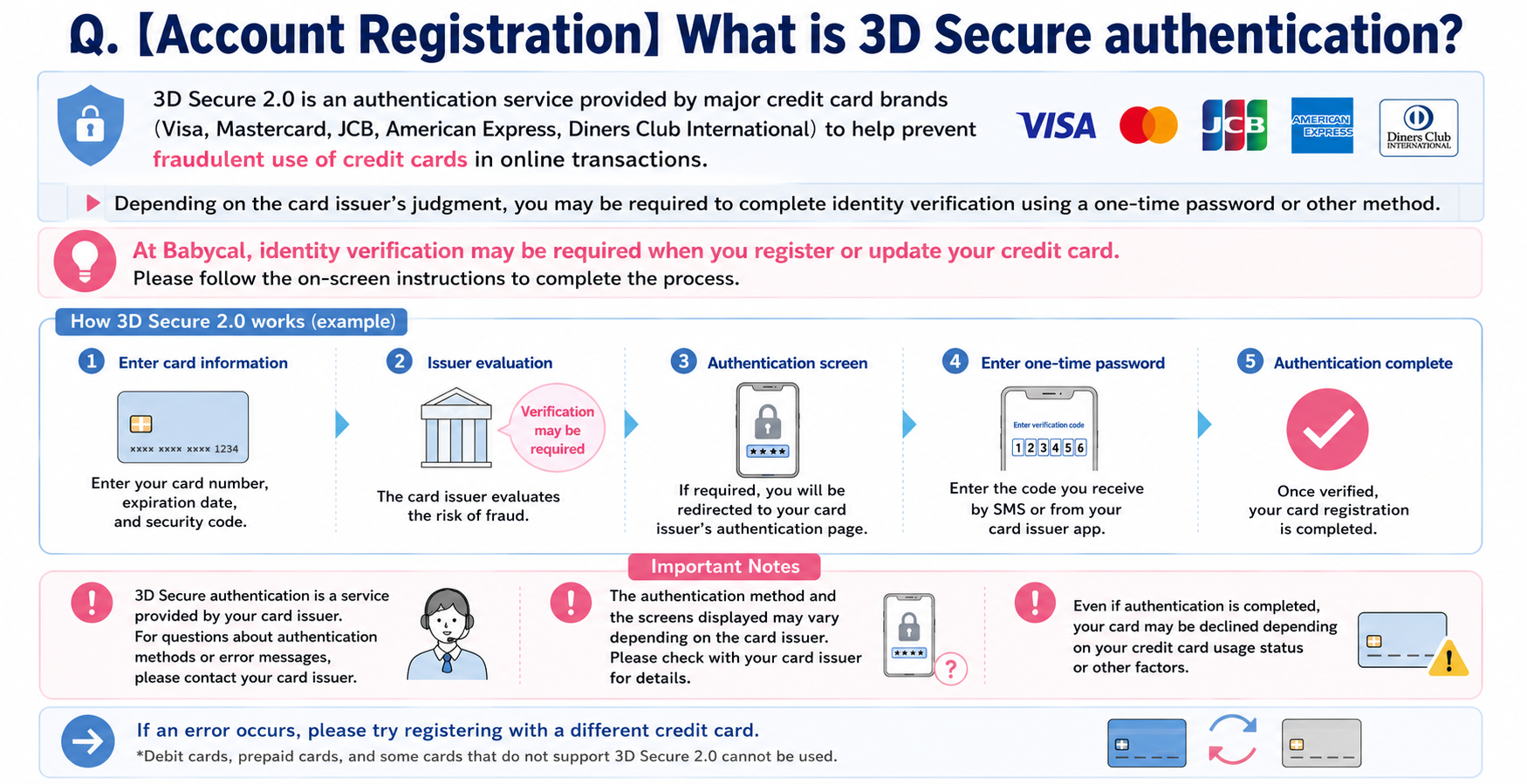
3D Secure 2.0 is an identity verification service provided by major international card brands including:
・Visa
・Mastercard
・JCB
・American Express
・Diners Club
It helps prevent unauthorized use of credit cards during online transactions.
Depending on your card issuer’s risk assessment, you may be asked to verify your identity using a one-time password or another authentication method.
When registering or updating your credit card with BabyCal, you may be asked to complete 3D Secure authentication.
Please follow the instructions displayed by your card issuer.
〈 Important Notes 〉
3D Secure is provided by your card issuer, not BabyCal.
Authentication methods and error messages vary by card issuer.
Please contact your card issuer if you have questions about authentication or receive an error.
Even after successful authentication, payment authorization may still be declined depending on your card’s status.
If an error continues, please try registering another credit card.
▶Why Is 3D Secure Verification Required for My Credit Card?
3D Secure is a security feature designed to protect your credit card from unauthorized use.
Even if your card information, such as your card number, is compromised, 3D Secure helps prevent anyone other than the cardholder from using the card without permission.
To provide a safe and secure rental experience, BabyCal may require 3D Secure authentication when you register or update your credit card.
Whether authentication is required is determined by your card issuer.
Authentication is not requested for every customer or every transaction.
We apologize for the extra step during your first registration.
Thank you for your understanding and cooperation in helping us keep your account secure.
4. If You Cannot Complete Credit Card Registration or 3D Secure Authentication
▶Common Reasons Why Credit Card Registration or Verification May Fail
If you are unable to register your credit card or complete 3D Secure authentication, please check the following before trying again.
・Make sure you have a stable internet connection.
(Do not close your browser or the app while the authentication process is in progress.)
・Confirm that your credit card is valid and available for use.
・Make sure you entered the authentication code correctly.
・Try another 3D Secure 2.0-compatible credit card.
▶Unsupported Credit Cards
【 Important 】
Even if a card has a card number, expiration date, security code, and card brand logo, the following cards cannot be used:、
× Debit cards (linked directly to a bank account)
× Prepaid cards (cards that require funds to be loaded in advance)
Please register a credit card as your payment method.
Because 3D Secure authentication is managed by your card issuer, the authentication process and error messages differ by issuer.
For this reason, BabyCal may not be able to determine the exact cause of an authentication error.
If the problem persists, please contact your card issuer for assistance.
▶Checklist if Card Registration or 3D Secure Authentication Fails
▶Things to Check First If You Cannot Register Your Credit Card or Complete Verification
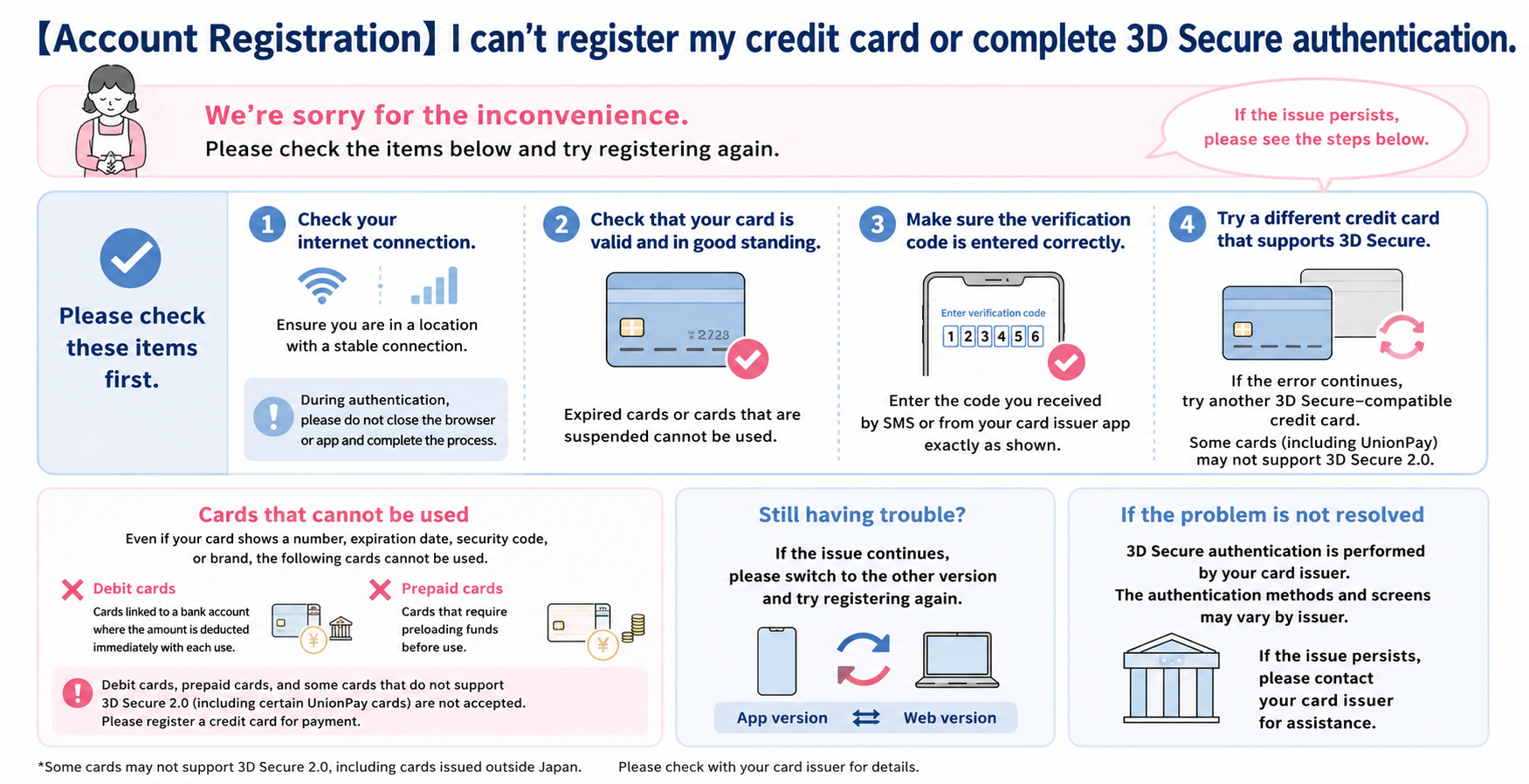
Please check the following items before trying again.
□ Are you using a stable internet connection?
(Wi-Fi or mobile data interruptions may prevent authentication from completing.)
□ Did you keep the browser or app open throughout the authentication process?
(Closing the authentication screen or leaving it before completion may cause the process to fail.)
□ Did you enter your card number, expiration date, and security code correctly?
□ Did you enter the one-time password (OTP) or other authentication code correctly?
□ Has your credit card expired?
□ Has your card been suspended or exceeded its credit limit?
□ Is your card compatible with 3D Secure 2.0?
(Some cards, including UnionPay cards, may not support 3D Secure 2.0.)
□ Are you using a debit card or prepaid card?
(Debit cards and prepaid cards are not accepted.)
▶Last resort if your membership registration fails
If you still cannot complete registration or authentication after checking the items above, we sincerely apologize for the inconvenience.
Please try registering using the other version of BabyCal.
BabyCal offers both a Web Version and an App Version.
Each version has its own separate membership registration system.
Even if you use the same email address and password, your account is not shared between the Web Version and the App Version.
- If registration failed on the Web Version, please try the App Version.
- If registration failed on the App Version, please try the Web Version.
We apologize for the inconvenience and appreciate your cooperation.
5. Reservation Steps for First-Time Rentals
▶How to Find Rental Locations and Available Equipment
You can check which rental locations offer which types of equipment by viewing theRental Location List.
▶Choosing the Right Stroller for Your Child’s Age
The recommended age range varies depending on the stroller model.
Depending on the rental location, the following stroller types may be available:
- Type A Stroller
- Suitable for children from 1 month to 4 years old (48 months)
- Type B Stroller
- Suitable for children from 7 months to 4 years old (48 months)
Please choose a stroller appropriate for your child’s age.
▶How to Check the Estimated Rental Fee
After creating an account, you can view the estimated rental fee from the reservation screen.
Log in to your BabyCal account.
① Select a rental location from the map.
(You can also search by location name or address.)
② Select the equipment you would like to rent.
③ Enter your Rental Start Date & Time and Return Date & Time.
④ Click “Reserve.”
The estimated rental fee for your reservation will be displayed.
Please note:
The final charge is calculated based on your actual rental duration, so the final payment may differ from the estimated amount.
Gray time slots on the availability chart indicate periods when equipment is unavailable due to existing reservations or the rental location being closed.
▶How to Make a Reservation
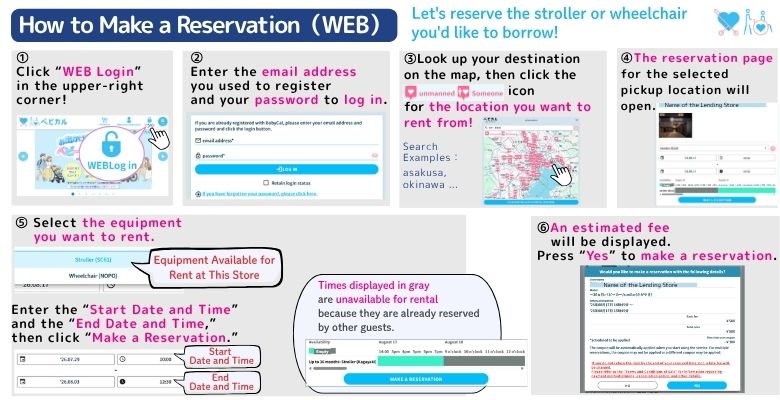
① Go to the Babycal website and click the “Web Login” button in the upper-right corner.
② Enter the email address and password you used to create your account, then log in.
③ Use the map to find your destination, then select the heart icon for the location where you want to rent the equipment.
You can also search by entering an address or location name in the search bar.
④ The reservation page for the selected rental location will open.
⑤ Select the equipment you want to rent.
Here, you can choose whether you want to rent a stroller or wheelchair.
⑥ Enter the “Reservation Start Date and Time” and “Reservation End Date and Time.”
⑦ Click the “Make a Reservation” button and check your reservation details and the estimated rental fee.
⑧ If the reservation details are correct, click “Yes” to confirm your reservation.
▶Things to Check Before Making a Reservation
Please confirm the following before completing your reservation.
☑ Equipment must be returned to the same rental location where it was borrowed.
☑︎ When renting a stroller, please make sure the stroller is appropriate for your child’s age.
☑︎ Reservations can be changed or canceled up to 5 minutes before the scheduled rental start time.
▶How to View Your Reservation Details
After logging in,
select “Current Reservation / In Use” from the bottom menu
(Web Version: Reservation / In Use
App Version: Reservation / In Use).
Your reservation details and the QR code required for pickup will be displayed.
Required Steps for First-Time Users
6. Frequently Asked Questions About Reservations
▶How far in advance and up to what point can I make a Reservation?
【 Earliest Reservation 】
Reservations can be made up to 5 minutes before the rental start time, subject to equipment availability.
Please note that reservations may not be possible if all equipment has already been reserved.
【 Furthest Advance Reservation 】
Reservations can be made up to 14 days before the rental start date.
If your rental period crosses into another calendar day, reservations can be made beginning 14 days before the return date.
▶What Is the Maximum Rental Period?
Equipment can be rented for up to 7 consecutive days (168 hours).
▶Making Multiple Reservations
Each member may hold up to five active reservations.
Multiple reservations for the same time period are permitted.
Please note:
If you have equipment that is overdue, you will not be able to make new reservations.
7. How to Cancel If Your Plans Change
▶Arriving Earlier Than Your Reserved Pickup Time
You may pick up your equipment up to 15 minutes before your scheduled rental start time.
Please note that equipment cannot be picked up before the rental location opens.
▶What If I’m Running Late for Pickup?
Rental charges begin from your scheduled rental start time, even if you arrive late.
However, you may still pick up your reserved equipment after the scheduled time.
Reservations may be canceled up to 5 minutes before the rental start time.
After that, the applicable rental fee will be charged.
If you wish to change your reservation time, please:
- Cancel your current reservation.
- Make a new reservation for your preferred date and time.
Please note that if you do not cancel your reservation, the rental fee will still be charged even if you do not use the equipment.
▶How to Cancel or Change a Reservation
【 Canceling a Reservation 】
- Log in to your BabyCal account.
- Open “Current Reservation / In Use.”
- Complete the cancellation procedure.
Reservations may be canceled up to 5 minutes before the rental start time.
【 Changing a Reservation 】
Reservation details cannot be edited directly.
If you wish to change your reservation, please:
- Cancel your current reservation.
- Make a new reservation with your preferred date and time.
No cancellation fee applies if the reservation is canceled at least 5 minutes before the rental start time.
▶Reservation Cancellation Deadline
Reservations can be canceled without charge up to 5 minutes before the scheduled rental start time.
▶No-Show or Failure to Cancel
If you do not complete the cancellation procedure and:
・do not use the equipment, or
・do not arrive at the reserved rental location,
the applicable rental fee will still be charged.
8.Rental Fee Calculation
▶How Rental Fees, Extension Fees, and Late Fees Are Calculated
Rental fees are calculated based on your actual usage time.
■ If you return the equipment earlier than planned
After the first hour, your fee is calculated based on the period between:
your reserved rental start time, and
your actual return time.
■ If you extend your rental
You can extend your rental through “Reservations / In Use” on the member website up to 5 minutes before the scheduled end time.
Extensions may not be available depending on the rental location’s business hours or reservation availability.
Your rental fee will be calculated from your reserved rental start time to your actual return time.
■ If you return the equipment after the scheduled return time (Overdue)
If you return the equipment after the scheduled return date and time specified in your reservation, an overdue fee will be charged.
Once your rental becomes overdue, you cannot extend your reservation.
Please complete any extension before your scheduled return time.
〈 Overdue Fee 〉
¥500 for every 15 minutes
※The 12-hour maximum daily fee does not apply to overdue charges.
▶【Fees】How is the rental fee calculated if I return the equipment early?
If you return the equipment before your scheduled end time, your fee will be calculated based on your actual return time, excluding the first hour from the rental start time.
Example
Reservation: 12:00 PM – 3:00 PM
Actual use: 12:00 PM – 2:00 PM
→ You will be charged for 2 hours of rental.
9. Return Place, Extensions, and Late Returns
▶Can I Return the Equipment to a Different Location?
Please return the equipment to the same rental location where you picked it up.
You cannot return the item to a location other than the store where you rented it.
▶Can I Leave the Equipment with Staff at Other Facilities, Such as Hotels or Stations, and Ask Them to Return It for Me?
× Do not leave the equipment with staff at any facility other than the rental location where you picked it up.
This includes staff at hotels, stations, shops, or other facilities.
They cannot return the equipment on your behalf.
Please do not leave the equipment with them and ask them to return it for you.
The rental is considered “completed” only when you return the equipment yourself to the rental location where you picked it up.
Until we can confirm that the equipment has been returned to the rental location, it will be considered still in use, and rental charges will continue to apply.
Please make sure to return the equipment yourself to the same rental location where you picked it up.
▶How to Extend Your Rental When You Need More Time (More Than 5 Minutes Before the Scheduled Return Time)
If you expect to return the equipment later than the scheduled return date and time you selected when making your reservation, please complete an extension request at least 5 minutes before the scheduled end time.
To extend your rental:
- Log in to your account from “Log In” at the top of the page.
- Open “Reservations / In Use.”
- Complete the extension procedure.
Extensions may not be available depending on the rental location’s business hours or reservation availability.
If you continue using the equipment after the scheduled return time without completing an extension, an overdue fee will be charged.
▶If you are unable to return the item by the scheduled return date and time you set at the time of reservation (if you realize this after the scheduled return date and time has passed)
If you are unable to return the equipment by the scheduled return time, an overdue fee will apply.
Please return the equipment as soon as possible.
Overdue Fee
¥500 for every 15 minutes
The maximum daily rental fee (12 hours / ¥2,000) does not apply to overdue charges.
Please note that overdue fees cannot be refunded.
▶Can I Extend My Rental After Receiving a Late Return Notice?
Once your rental becomes overdue, you can no longer extend your rental period.
If you cannot return the equipment by the scheduled return time, an overdue fee will apply.
Please return the equipment as soon as possible.
Overdue Fee
¥500 for every 15 minutes
The maximum daily rental fee (12 hours / ¥2,000) does not apply to overdue charges.
Please note that overdue fees cannot be refunded.
▶What If I Cannot Return the Equipment Before the Rental Location Closes?
If you cannot return the equipment before the rental location closes, please return it during the location’s business hours on the following day or later.
>For unattended rental stations (self-service rental machines)
If the rental machine remains operational after business hours, you may still be able to return the equipment using the machine.
>For staffed rental locations
If the Babycal service counter has closed but the facility hosting the rental counter is still open, you may still be able to return the equipment.
Availability depends on the individual rental location.
▶How to Check Your Scheduled Return Time (Email Notifications)
Email notifications are sent to the email address registered with your account:
・When your reservation is confirmed
・30 minutes before your scheduled return time
If you return the equipment earlier than planned, you may still receive the 30-minute reminder email.
If you have already returned the equipment, you may simply disregard this email.
10. Troubleshooting During Your Rental
▶How to Remove a Stroller or Wheelchair from an Unmanned Rental Station.
- Press “Member Authentication” on the rental machine.
- Scan the QR code displayed in your reservation.
- Select the number shown on the screen.
- Press “Confirm.”
The indicator light will turn on, allowing you to remove the IC key from the corresponding slot and take the stroller or wheelchair.
▶What to Check If the Stroller Wheels Won’t Move
Please check whether the wheels are locked.
【 Rear wheels 】
The rear-wheel brake is engaged when the brake lever is pushed downward.
This brake prevents the stroller from moving unintentionally when parked, especially on slopes.
If the rear wheels are locked while you are trying to use the stroller, lift the brake lever upward to release the brake.
【 Front wheels 】
The front wheel lock should normally remain unlocked (lever down).
If the front wheel lock is engaged, the stroller will not turn easily and may only move straight ahead.
If the stroller is difficult to steer, please check that the front wheel lock has been released.
If the wheels still do not move after confirming they are unlocked, please contact the Babycal Customer Support Center.
▶︎How to Recline the Stroller Seat
To recline the seat, pull the recline strap located behind the seat.
To return the seat to the upright position, make sure no weight is pressing against the backrest, then pull the end of the recline strap.
Please note:
Type B strollers (for children approximately 7 months to 4 years old (48 months)) cannot recline completely flat like Type A strollers (for children approximately 1 month to 4 years old (48 months)).
Please use equipment that is appropriate for your child’s age and weight.
▶I Forgot My Phone and Cannot Display My QR Code
You must display your QR code to complete the rental procedure.
Please make sure you bring the smartphone or tablet that displays your QR code when visiting the rental location.
▶Can the User Be Different from the Person Who Made the Reservation?
No.
The reservation must be made by the person who will use the equipment.
For wheelchair rentals, the reservation should be made by the person accompanying the wheelchair user (caregiver or attendant).
▶What Should I Do If I Damage the Rented Equipment, Such as a Stroller or Wheelchair?
Continuing to use damaged equipment may result in unexpected injury or accidents.
Please stop using the equipment immediately and contact the Babycal Customer Support Center.
▶What Should I Do If I Accidentally Get the Stroller or Wheelchair Dirty?
Please wipe off any dirt and return the equipment in a clean condition.
If the dirt cannot be removed, please contact the Babycal Customer Support Center.
▶I Left Something in the Stroller or Wheelchair After Returning It
Your lost item may have been kept at the rental location.
Please contact the facility where you rented the equipment directly.
▶Unsafe Uses to Avoid for Your Safety
Please follow these safety precautions to help prevent accidents, injuries, and damage to the equipment.
⚠️ Use equipment that is appropriate for your child’s age and weight.
⚠️ Never leave your child unattended while seated in the stroller.
⚠️ keep your child’s seatbelt fastened at all times while using the stroller.
⚠️ Do not attempt to force the stroller or wheelchair over steps, stairs, or other large obstacles.
⚠️ Always apply the rear wheel brake before placing your child in or taking your child out of the stroller.
⚠️ Never hang heavy things on the handle; risk of tipping over.
Doing so may cause the equipment to become unstable, tip over, or be damaged because every stroller and wheelchair has a maximum weight limit.
▶Can I Rent a Rain Cover?
Rain covers are not provided with either strollers or wheelchairs.
Thank you for your understanding.
11. Other Inquiries
▶How to Change Your Registered Credit Card
【 WEB Version 】
After logging in:
1. Open the three-line (hamburger) menu in the upper-right corner.
2. Select “Change Credit Card.”
3. Enter the information for your new credit card.
【 App Version 】
After logging in:
1. Open the three-line (hamburger) menu in the upper-left corner.
2. Select “Payment Information.”
3. Tap “Add Card.”
4. Enter the information for your new credit card.
After registration, you can choose which registered card to use for payment.
▶How to Delete Your Account
【Web Version】
After logging in, select “Close Account” from the hamburger menu (three horizontal lines) in the upper-right corner, and follow the instructions to complete the process.
【App Version】
After logging in, select “Close Account” from the hamburger menu (three horizontal lines) in the upper-left corner, and follow the instructions to complete the process.
▶How to Obtain a Receipt
After logging in, you can request a receipt from “Usage History.”
【Web Version】
After your payment is completed, a receipt in PDF format will be sent to the email address registered with your account.
【App Version】
After logging in, select “Usage History / Receipts” from the hamburger menu (three horizontal lines) in the upper-left corner. Your past usage history and receipts will be displayed. You can download your receipt from this screen.